
Camera guide · Hikvision
Hikvision plate recognition on the camera you already have
Hikvision cameras record the car. ANPR Edge reads it — plate, make, model and colour, from all six GCC countries — on a Windows PC or Mac next to the camera. No special ANPR camera to buy.
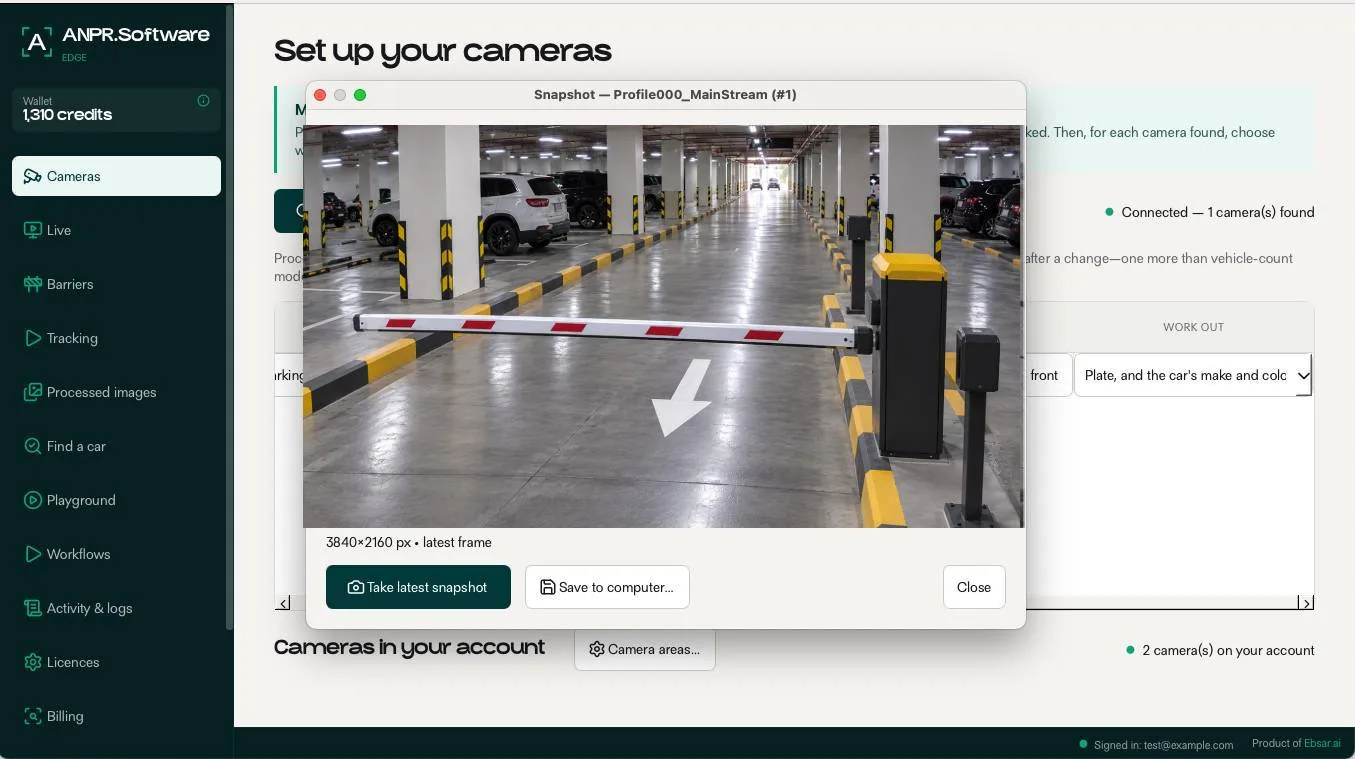
What your Hikvision camera can do with ANPR Edge
Read every plate
Plates from the UAE, Saudi Arabia, Qatar, Kuwait, Bahrain and Oman, read from the Hikvision stream on your PC or in our cloud.
Know the car, not just the plate
Make, model and colour come with each read, so you can search for a white Land Cruiser as easily as for a plate.
Open the gate for approved cars
Check each plate against your list and open the barrier through a relay board. The camera only has to see.
Alerts, counts and search
Get a Telegram or email alert for a watched car, count cars in and out, and find any car by plate.
What you need
- A wired Hikvision IP camera.
- Power for the camera: a PoE switch, a PoE injector or its own adapter, and a network cable to the PC.
- A Windows PC or Mac on the same network as the camera.
- A web browser on that PC, used once to activate the camera.
- A free ANPR.software account.
Set it up, step by step
Before you start
A new Hikvision camera arrives inactive: it has no password and refuses every login until you set one.
Step 1
Activate the camera
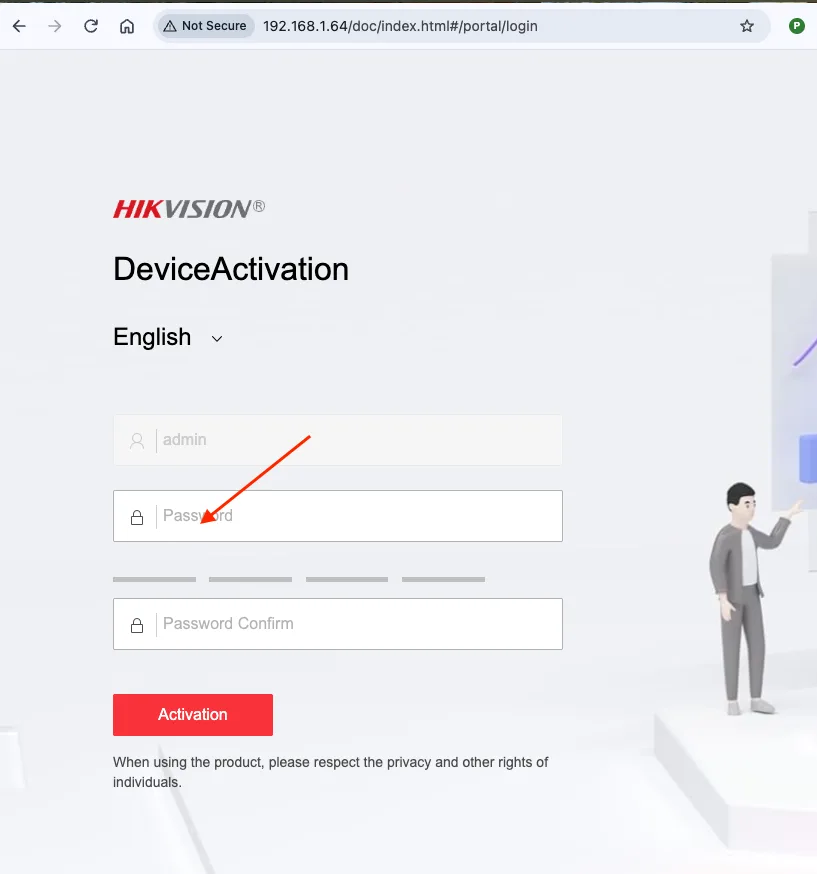
Plug the camera in and open its address in a browser on the PC — a new Hikvision camera starts at 192.168.1.64. On Device Activation the username is admin: choose a strong password, type it again under Password Confirm and press Activation. Keep the password — ANPR Edge asks for it later. If the page does not open, give the PC an address in the same range, such as 192.168.1.100, or activate the camera with Hikvision’s SADP tool.
Step 2
Install ANPR Edge
Download ANPR Edge for Windows or Mac and install it on the same PC.
Download ANPR Edge
Find the camera in ANPR Edge
Step 3
Open ANPR Edge and press Next
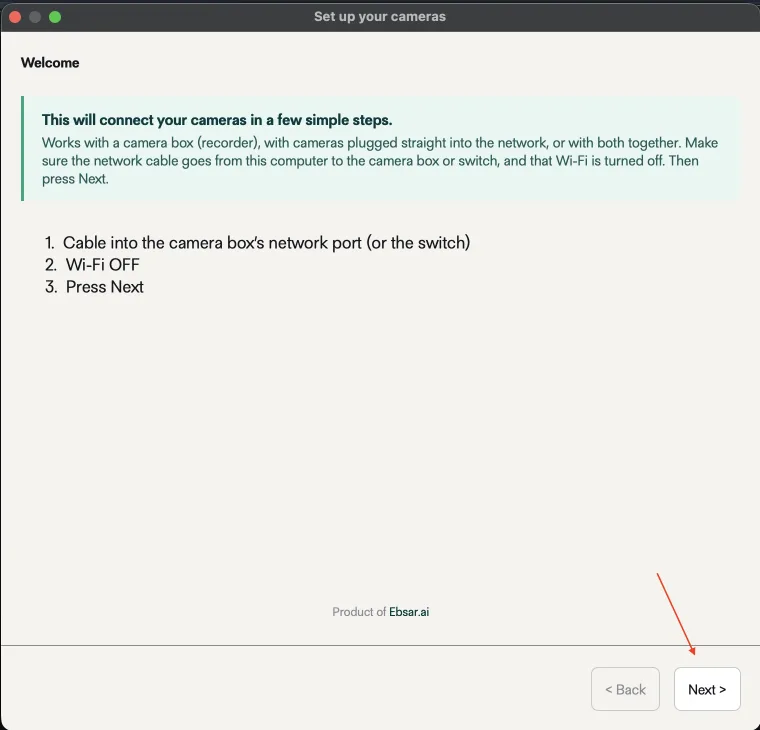
Open ANPR Edge. Set up your cameras starts on Welcome: check the network cable runs from the PC to the camera, the recorder or the switch, turn Wi-Fi off, and press Next.
Step 4
Find the camera
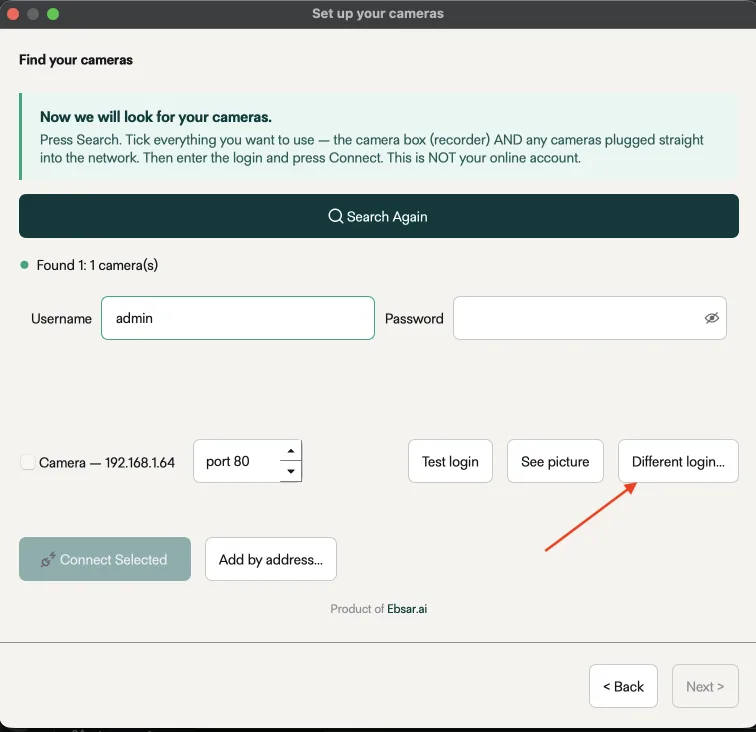
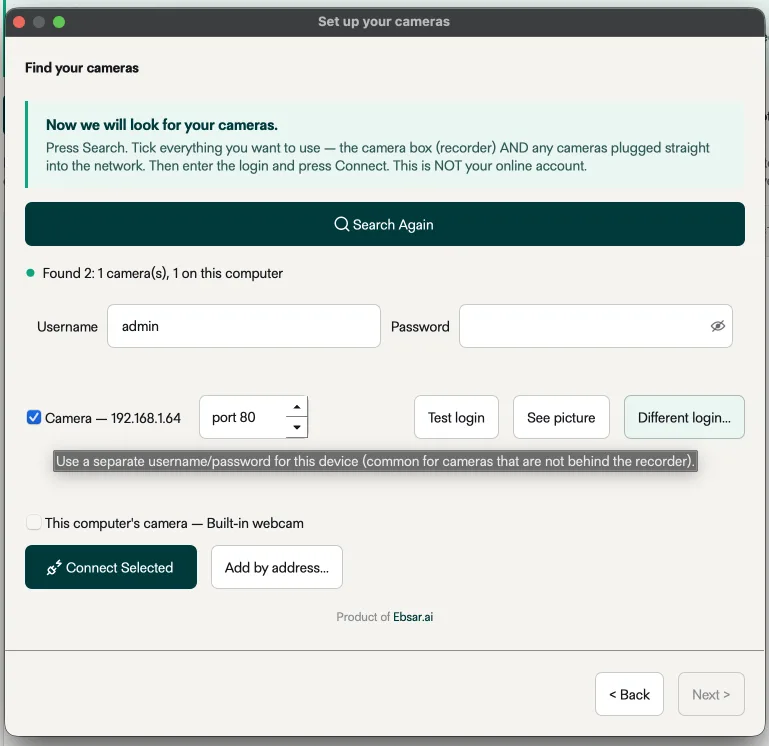
Press Search. ANPR Edge lists the Hikvision camera by its address — here Camera — 192.168.1.64, on port 80.
Step 5
Tick it and press Different login…
Tick the camera and press Different login…. It gives this camera its own username and password, which a camera plugged straight into the network needs, rather than the recorder’s login.
Step 6
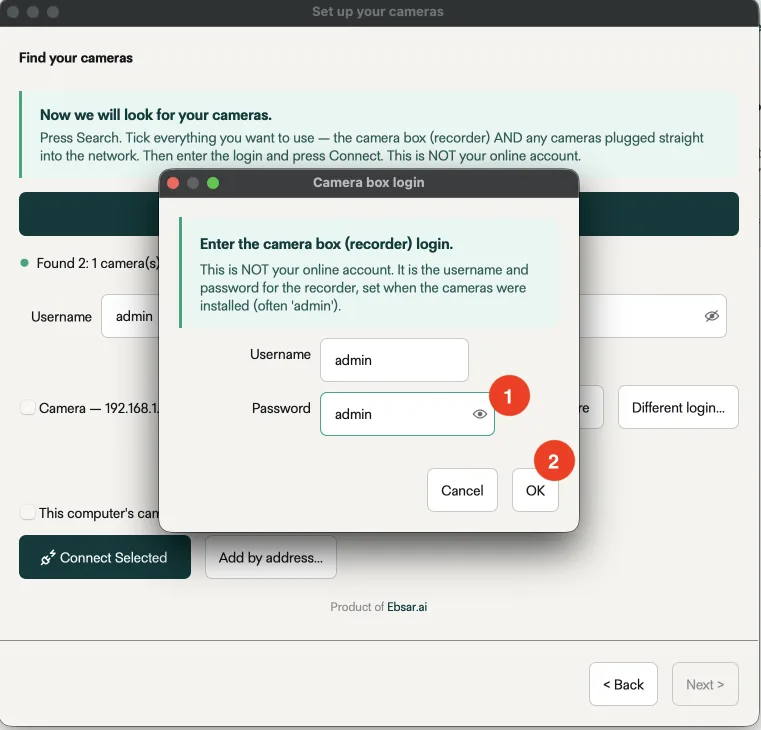
Enter the password you set
Enter admin and the password you chose when you activated the camera, and press OK. The window is called Camera box login, but here it takes the camera’s own login — not your ANPR.software account.
Step 7
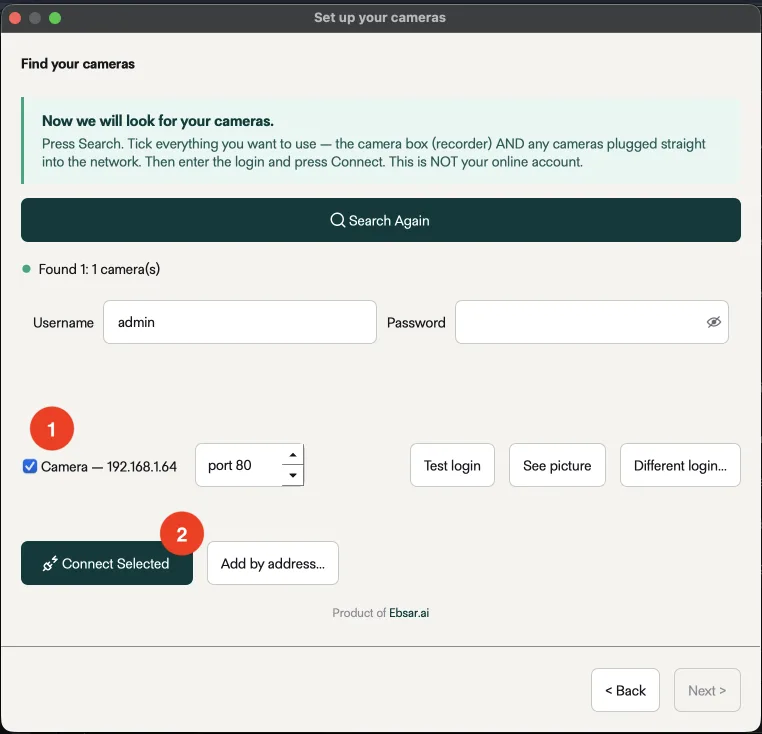
Press Connect Selected
With the camera still ticked, press Connect Selected.
Connect it in ANPR Edge
Step 8
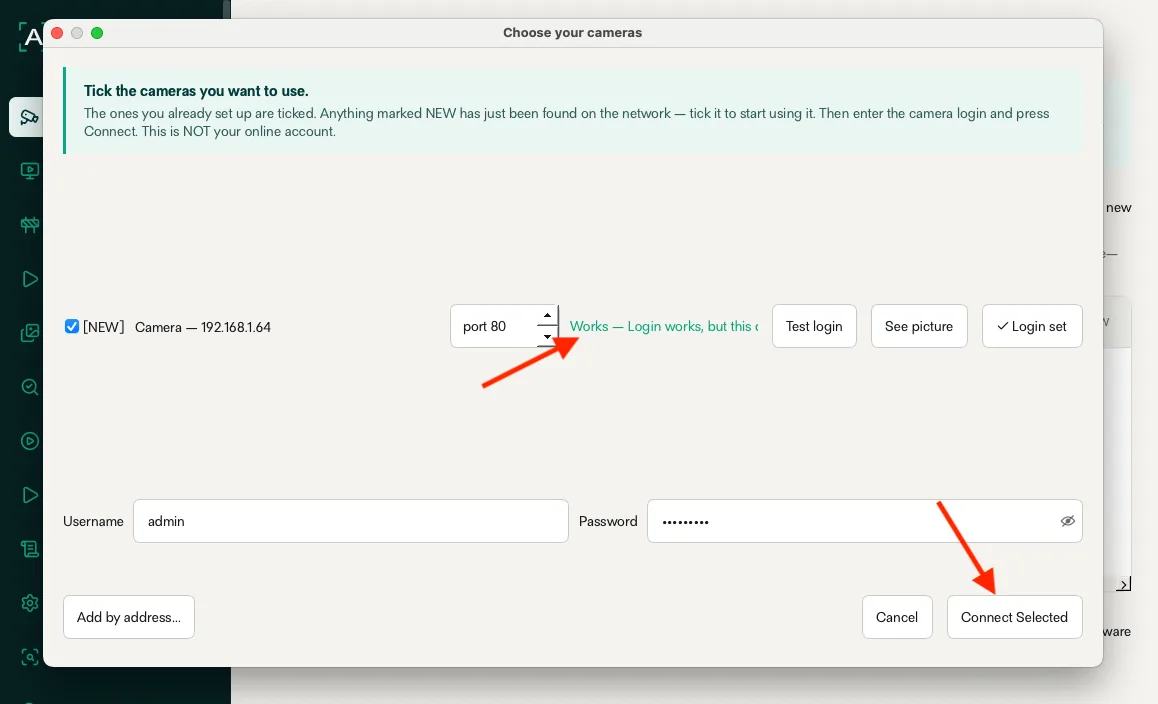
Check the login works
In Choose your cameras the camera is marked NEW, and the line beside it says Works in green once the login is right. Keep it ticked and press Connect Selected.
Step 9
The camera is in ANPR Edge
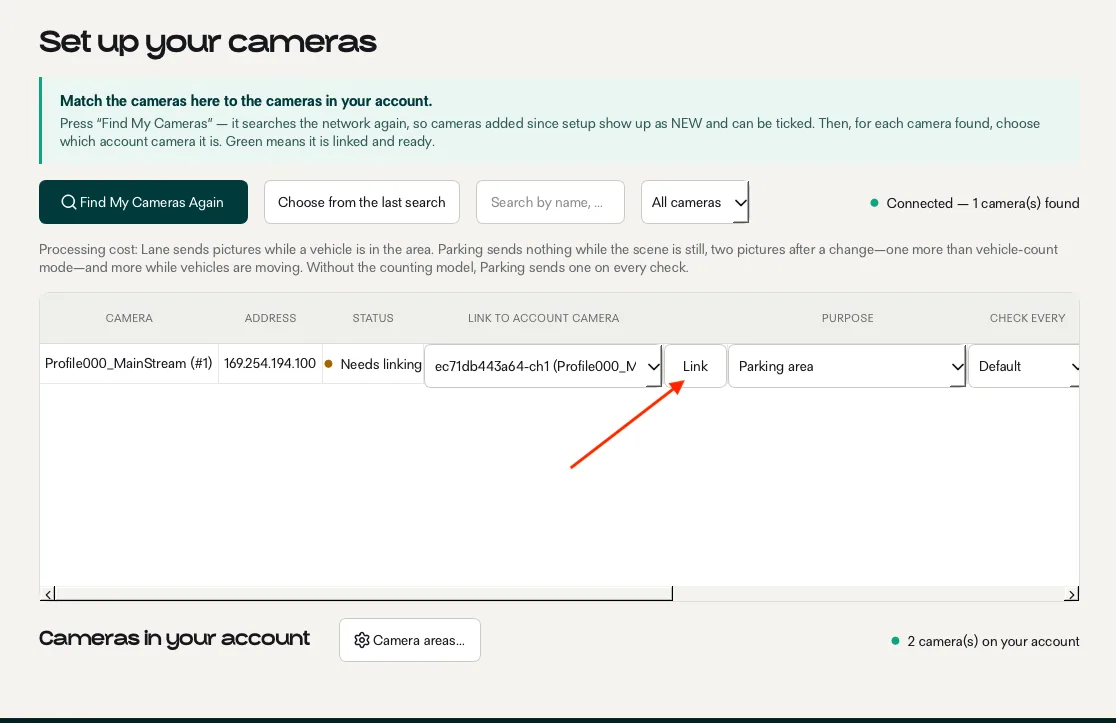
The camera now appears on Set up your cameras with the status Needs linking. The next step links it to your account.
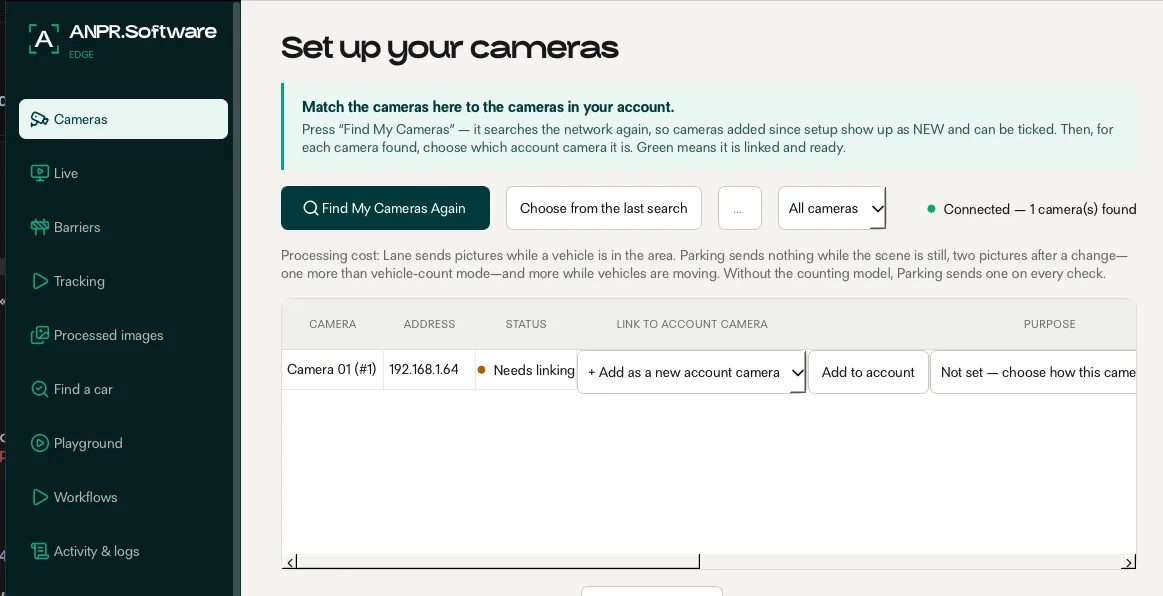
Step 10
Link it to a camera in your account
Under Link to account camera, pick the camera you created before, or add it as a new one.
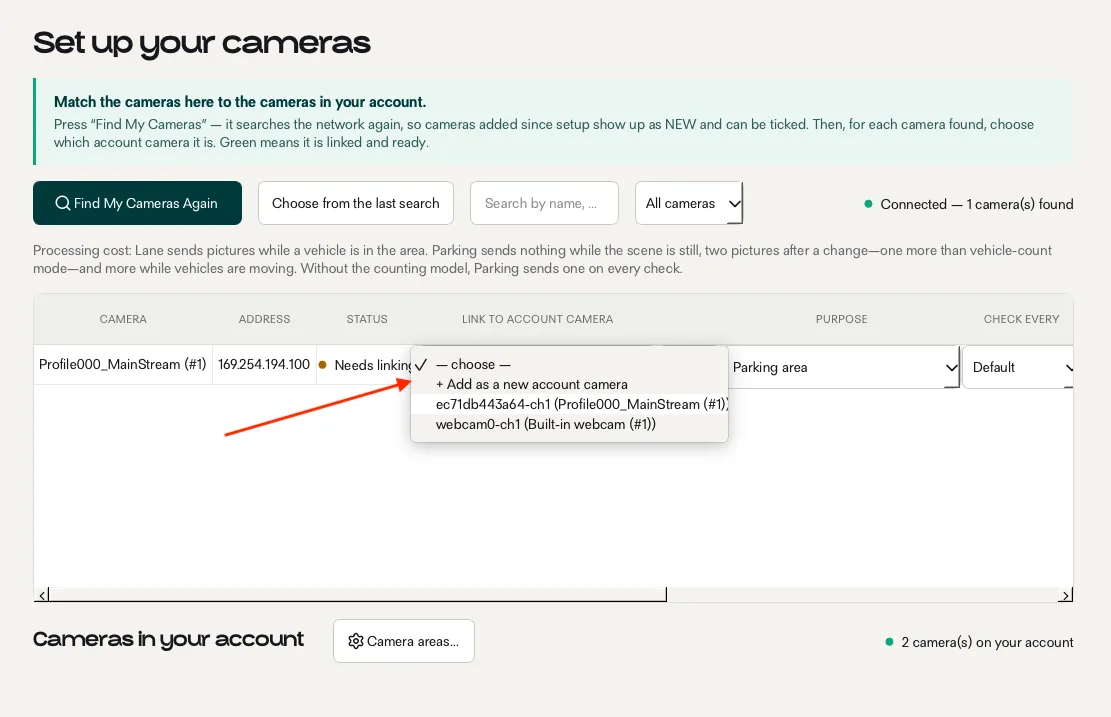
Step 11
Adding it as a new camera
For a new camera, choose + Add as a new account camera and press the button that appears beside it.
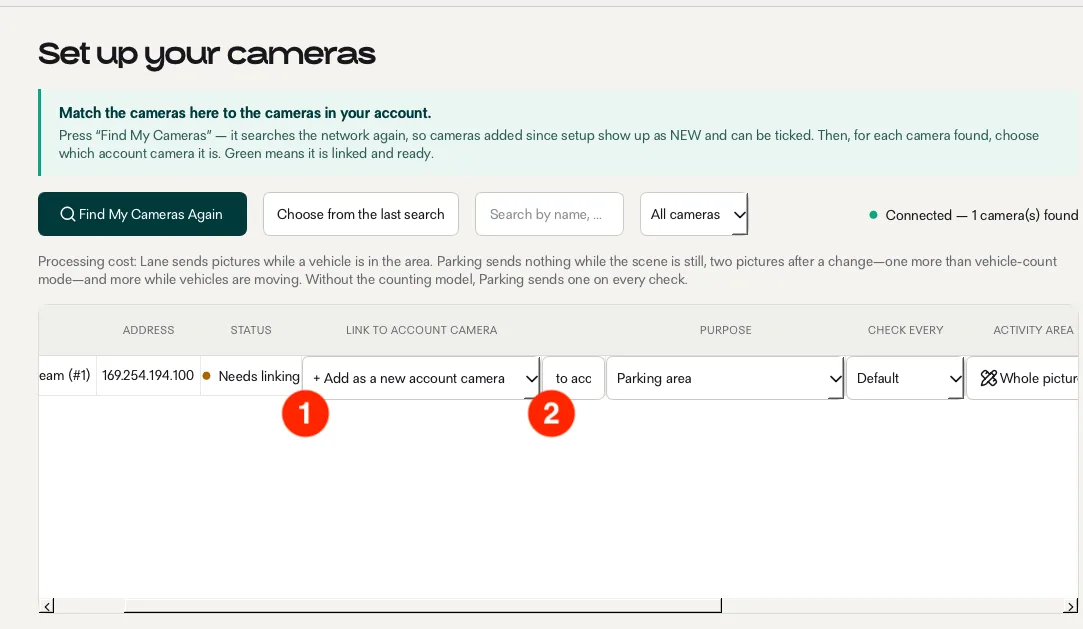
Step 12
Say where the camera is
Under This camera watches, choose A lane if cars drive past it — an entrance, an exit or a road — or A parking area if cars park and stay. For a lane, tick how a car looks to the camera when it is ENTERING (its front, its back, side-on…) and when it is LEAVING, so an arrival is never recorded as a departure. Press Save.
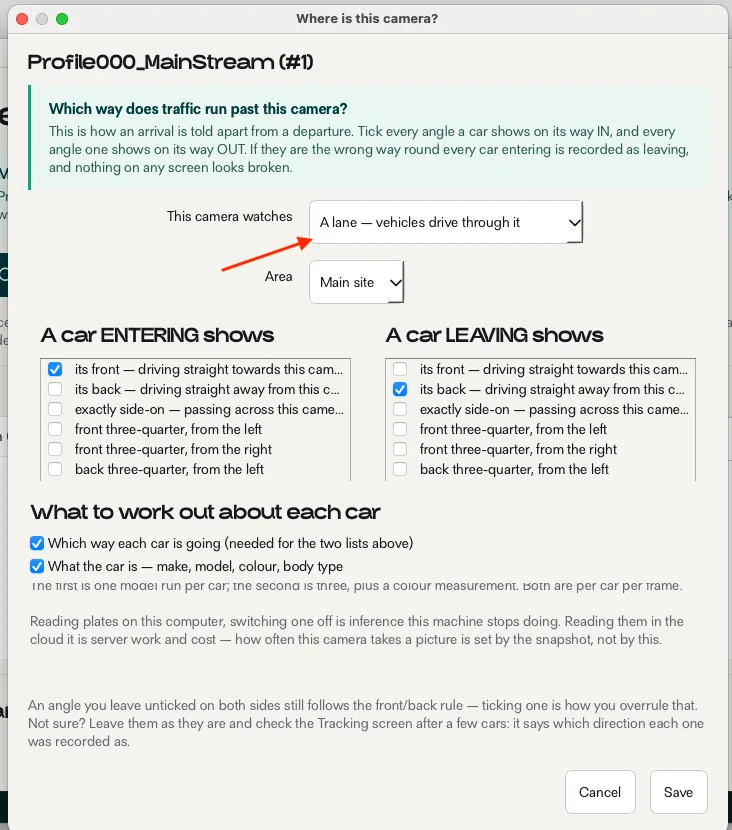
Step 13
The camera is connected
The camera is linked and ready. Green means connected.
Tell it where to look and what to read
Step 14
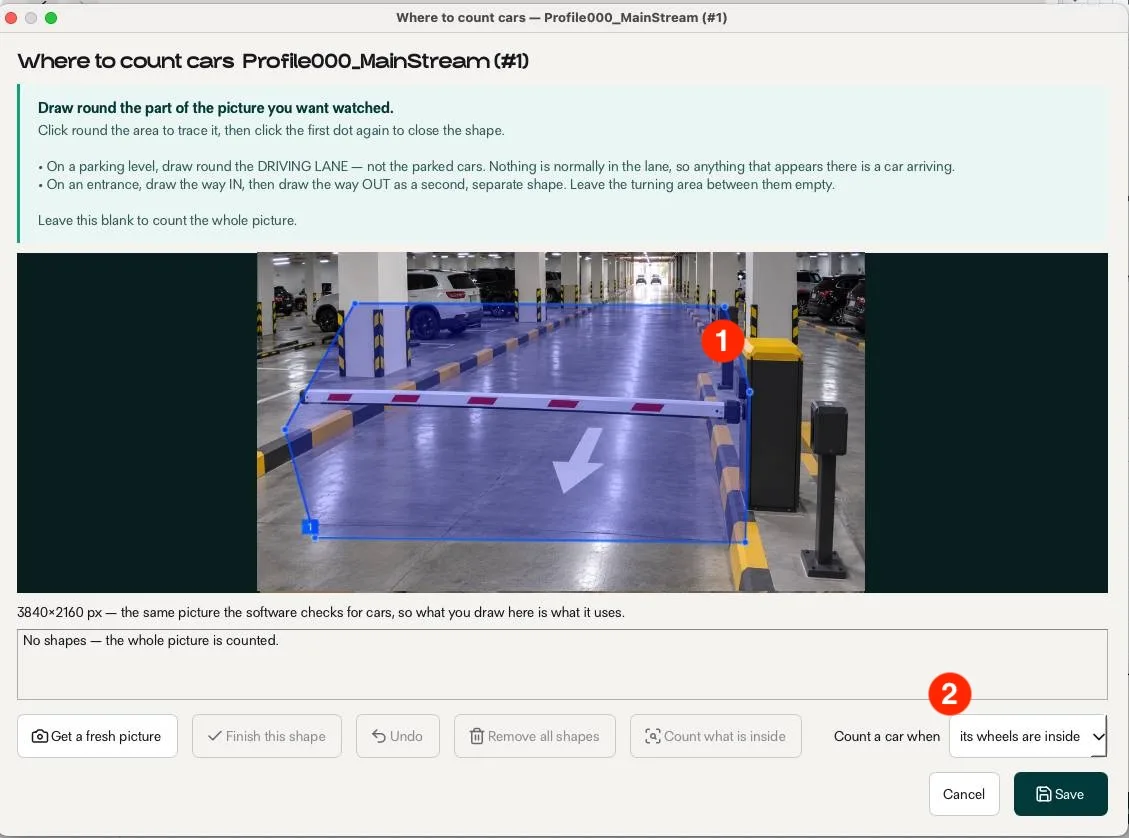
Draw the area to watch
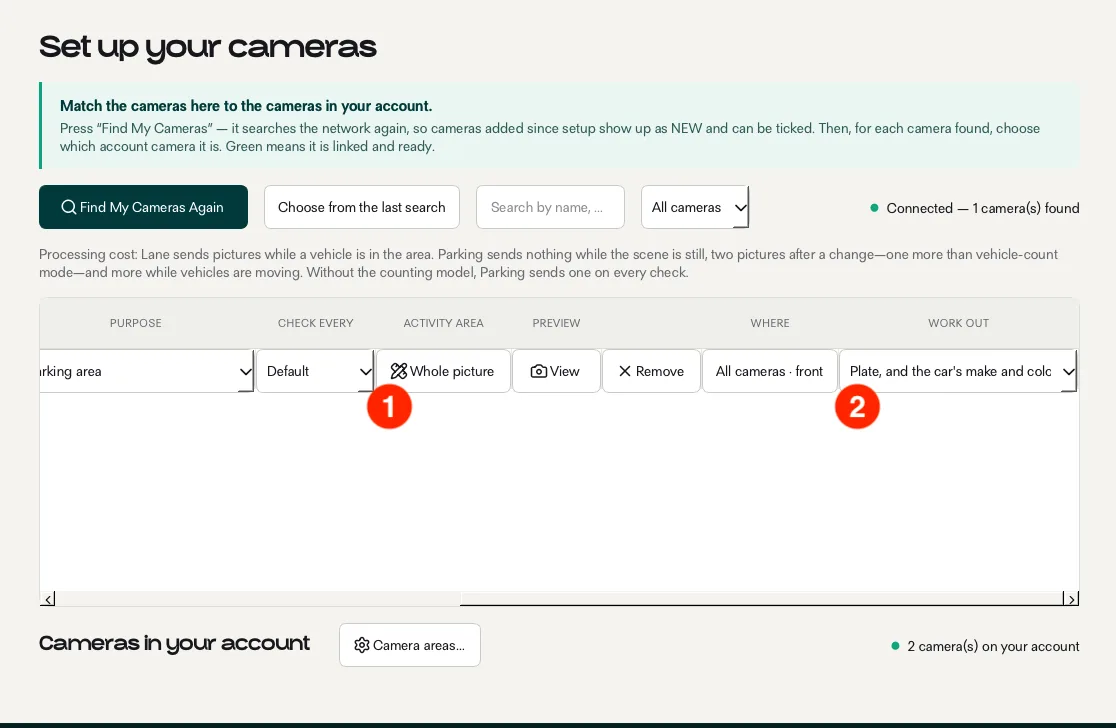
Scroll right to Activity area and draw round the part of the picture to watch — the lane, not the whole scene — so passing traffic and parked cars outside it are ignored. Then choose, at the bottom right, when a car counts as inside the area.
Step 15
Choose what to read
In the Work out column, choose the plate only — faster and lighter on the PC — or the plate with the car’s make, model and colour.
Start reading plates
Step 16
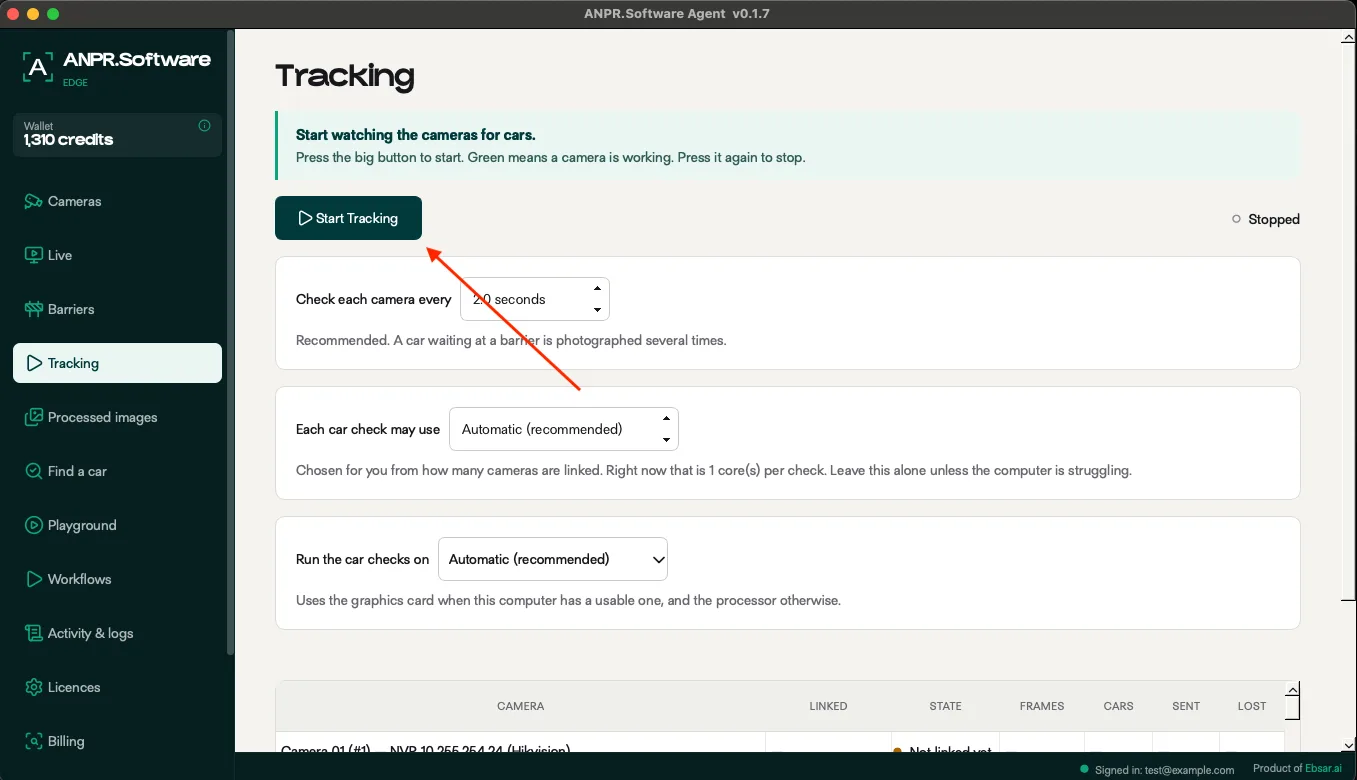
Start tracking
Open Tracking and press Start Tracking. ANPR Edge starts watching the camera and reading plates. Green means a camera is working; press the button again to stop.
Step 17
Send the plates where you need them
On the Workflows page, decide what happens after a plate is read: send it to your own system over HTTP, add it to a Google Sheet, or message a private Telegram chat. The decisions run on your PC, so a gate never waits for the internet.
How workflows work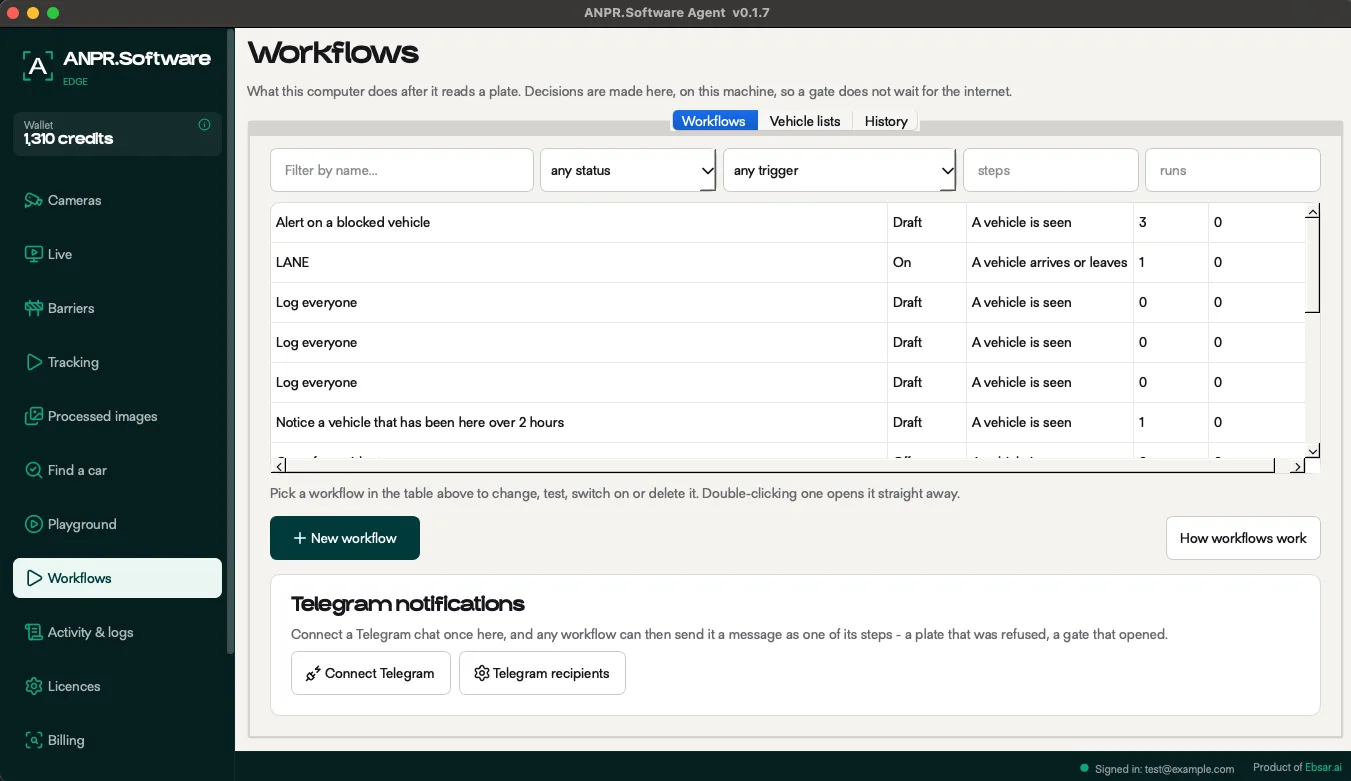
Step 18
Check what was read
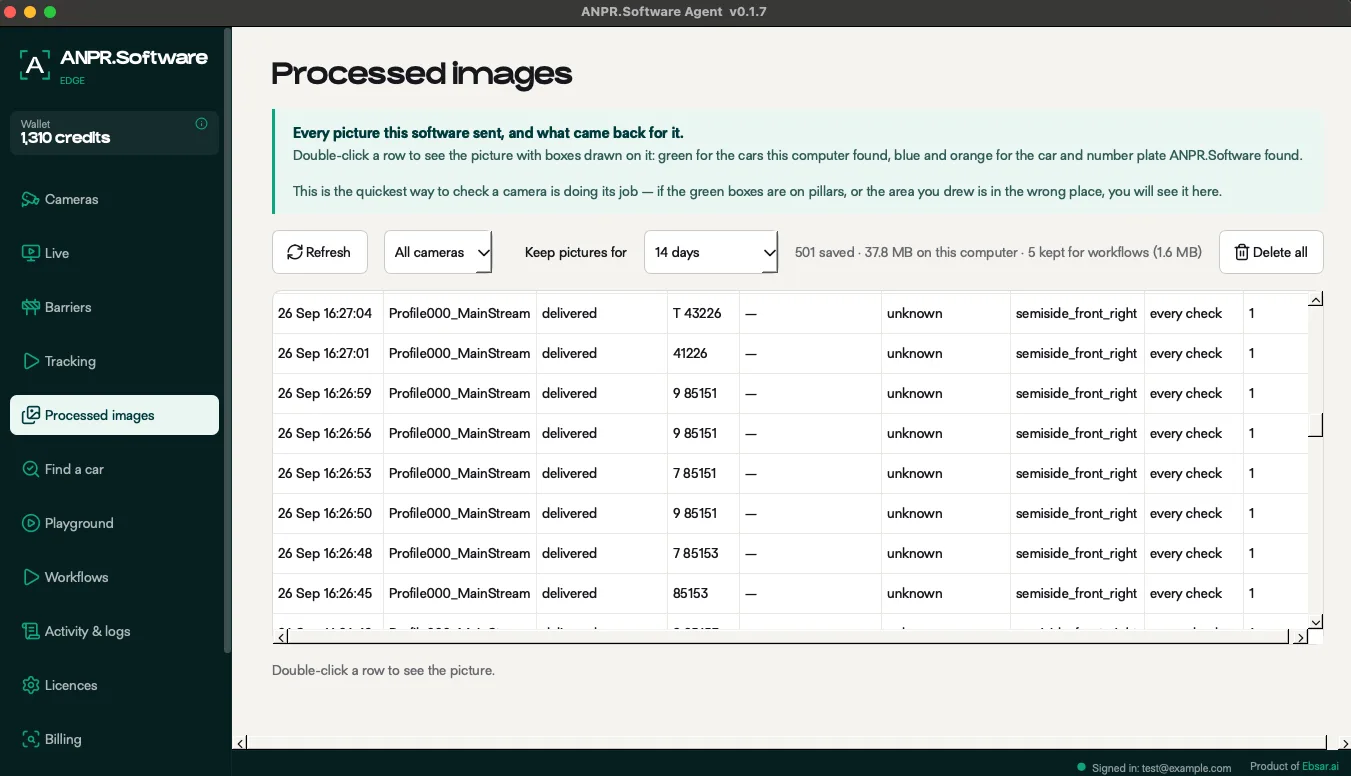
The Processed images page lists every picture and what came back for it. Double-click a row to see it with the car and plate boxed — the quickest way to check the camera and the area you drew.
If something does not show up
- The activation page does not open: the PC is on a different address range from the camera. Give the PC an address such as 192.168.1.100, or find and activate the camera with Hikvision’s SADP tool.
- Nothing found: check the cable and that Wi-Fi is off, then press Search Again. If it is still missing, press Add by address… and enter the camera’s address.
- The camera appears but will not connect: press Test login. It needs the camera’s own login — admin and the password you set at activation — not your ANPR.software account.
- The cameras sit behind a Hikvision recorder: tick the recorder in the search and enter the recorder’s login in the main Username and Password fields. Different login… is for a camera on its own.
- Arrivals show as departures: open Where is this camera? and swap the ENTERING and LEAVING angles.
Questions
Can a Hikvision camera read license plates?
Hikvision makes dedicated ANPR cameras, but most Hikvision cameras on a site are ordinary IP cameras that record the scene. ANPR Edge adds the part that reads the plate text: it takes the camera’s stream and returns the plate, the country and the car’s make, model and colour.
Which Hikvision cameras work?
Wired Hikvision IP cameras that ANPR Edge can log in to over your network. This guide was set up with a camera at its factory address, 192.168.1.64.
Why do I have to activate the camera first?
A new Hikvision camera has no password and refuses every login until one is set. Activation sets the admin password, and ANPR Edge logs in with it.
Do I need a special ANPR camera?
No. A Hikvision camera placed to see the plate clearly is enough; ANPR Edge does the reading. Where you mount it matters more than the model — the camera guide covers the angles and distances.
How much does it cost?
You can start free with one camera, with plates read in our cloud and paid per read. When you grow, one license per location covers the cameras there, with no per-camera fee.
Read plates on the camera you already own
Start free with one camera. When you grow, one license per location covers the cameras there — no per-camera fee.